
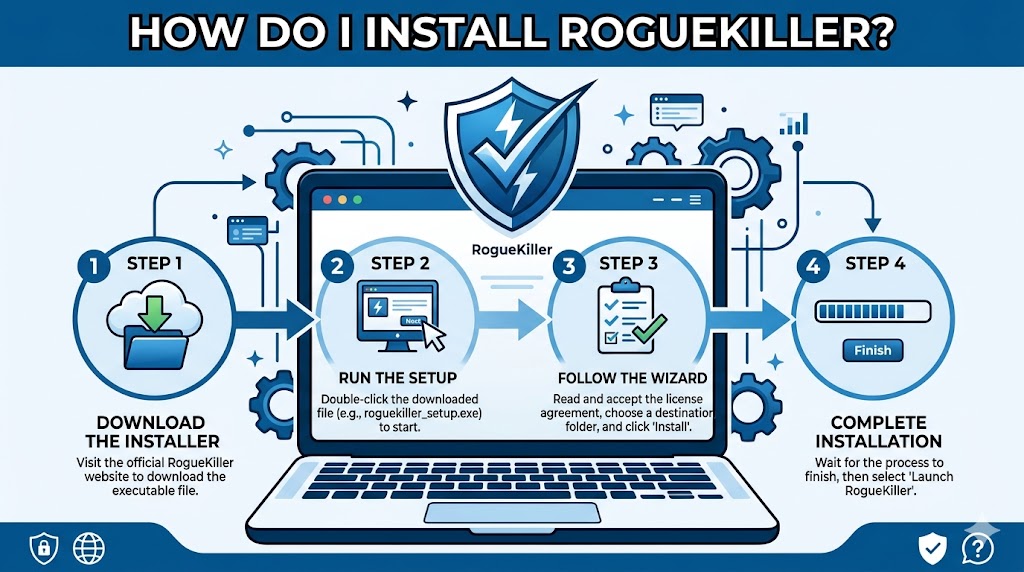
RogueKiller is a powerful anti-malware and security utility designed to detect and remove malware, potentially unwanted programs, rootkits, and other threats that can affect system performance and security. Whether you are troubleshooting suspicious activity on your computer or adding an extra layer of protection to your cybersecurity toolkit, installing RogueKiller is a straightforward process. This guide walks you through each stage of the installation process, from preparation to first launch, ensuring a smooth and successful setup.
Prepare Your System for Installation
Check System Requirements
Before installing RogueKiller, ensure that your computer meets the basic system requirements. RogueKiller is compatible with most modern Windows operating systems and requires adequate storage space for installation and updates. Verifying compatibility beforehand helps prevent installation issues and ensures optimal performance.
Close Unnecessary Applications
To avoid interruptions during installation, save your work and close any unnecessary programs running in the background. This can help reduce resource conflicts and improve the speed of the installation process.
Verify Administrative Access
RogueKiller installation requires administrative privileges. Make sure you are logged into an account with administrator rights or have the credentials available when prompted.
Download the RogueKiller Installer
Visit the Official Website
Open your preferred web browser and navigate to the official RogueKiller website. Downloading software from the official source helps ensure that you receive a legitimate and up-to-date version of the application.
Select the Appropriate Version
RogueKiller may offer different editions depending on your needs. Choose the version that best matches your intended use, whether it is a free trial, personal edition, or professional version.
Save the Installation File
Once the download begins, choose a location on your computer where the installer can be easily located, such as the Downloads folder or Desktop. Wait for the download to complete before proceeding.
Launch the Installer
Locate the Downloaded File
After the download is complete, navigate to the folder where the installer was saved. The file typically has a recognizable setup icon and may include the version number in its name.
Run the Setup Program
Double-click the installer file to begin the installation process. If Windows displays a User Account Control prompt asking for permission to make changes to your device, select “Yes” to continue.
Allow Security Verification
Windows may perform a security verification before launching the installer. This is a normal process designed to protect your system from unauthorized software.
Follow the Installation Wizard
Review the Welcome Screen
When the installation wizard opens, you will see a welcome screen introducing RogueKiller. Read any information provided and click the appropriate button to move to the next step.
Accept the License Agreement
Most software installations require acceptance of a license agreement. Carefully review the terms and conditions before selecting the option to accept and continue.
Choose Installation Preferences
You may be given options regarding installation location, desktop shortcuts, or additional settings. Select the preferences that best suit your workflow and computer setup.
Select the Installation Directory
Use the Default Location
For most users, the default installation directory is the recommended choice. It is configured to work seamlessly with Windows and simplifies future updates.
Customize the Folder Path
Advanced users who prefer a specific folder structure can choose a custom installation location. Ensure the selected directory has sufficient storage space and proper permissions.
Confirm Your Selection
After choosing the destination folder, review your settings and proceed to the next screen. This confirmation helps prevent accidental installation to an incorrect location.
Complete the Installation Process
Start the File Copy Process
Click the install button to begin copying files to your system. The installer will transfer program components, create directories, and configure essential settings.
Monitor Installation Progress
A progress bar usually displays the current status of the installation. Depending on system speed and available resources, this process may take several minutes.
Wait for Completion
Avoid interrupting the installation while files are being copied. Closing the installer prematurely could result in an incomplete or corrupted installation.
Launch RogueKiller for the First Time
Open the Application
Once installation is complete, you may see an option to launch RogueKiller immediately. Alternatively, open it using the desktop shortcut or Start menu entry.
Allow Initial Configuration
During the first launch, RogueKiller may perform initial setup tasks, verify program files, and prepare the application environment.
Review the Main Interface
Take a few moments to familiarize yourself with the dashboard, scanning options, reports section, and security tools available within the application.
Update RogueKiller
Check for Database Updates
Security software relies on updated threat databases to identify the latest malware. After installation, check for available updates and install them promptly.
Download the Latest Definitions
RogueKiller may automatically connect to its update servers and download the most recent detection signatures. This ensures maximum protection against current threats.
Verify Successful Updates
Once updates are complete, confirm that the application displays the latest database version and indicates that updates were installed successfully.
Run Your First System Scan
Select a Scan Type
RogueKiller typically offers several scan options, including quick scans, standard scans, and more comprehensive system analyses. Choose the option that best matches your requirements.
Start the Scan
Initiate the scan and allow the software to examine files, processes, registry entries, and system components. Scan duration depends on the size and complexity of your system.
Review Scan Results
When the scan finishes, examine the results carefully. RogueKiller will identify suspicious items and provide options for further action if needed.
Configure Recommended Settings
Enable Automatic Updates
Automatic updates help keep RogueKiller prepared to detect emerging threats. Enabling this feature reduces the need for manual maintenance.
Schedule Regular Scans
Creating a scan schedule ensures routine monitoring of your system. Regular scans can help identify threats before they cause significant issues.
Adjust Security Preferences
Explore the settings menu to customize notifications, scan behavior, exclusions, and reporting options according to your personal preferences.
Common Installation Issues and Solutions
Installer Does Not Open
If the installer fails to launch, verify that the download completed successfully and that your antivirus software is not blocking the setup file. Downloading a fresh copy may resolve the issue.
Permission Errors
Permission-related errors often occur when administrative rights are unavailable. Running the installer as an administrator can usually correct this problem.
Update Failures
If updates fail after installation, check your internet connection and firewall settings. Network restrictions may prevent communication with update servers.
Slow Installation Performance
A slow installation may result from limited system resources or background applications consuming memory and processing power. Closing unnecessary programs often improves installation speed.
Conclusion
Installing RogueKiller involves downloading the official installer, launching the setup wizard, selecting installation preferences, completing the installation, updating threat definitions, and running an initial scan. Following these steps helps ensure a secure and efficient setup. Once configured, RogueKiller becomes a valuable security tool for detecting threats, maintaining system health, and supporting safer everyday computing with reliable malware detection and removal capabilities.