
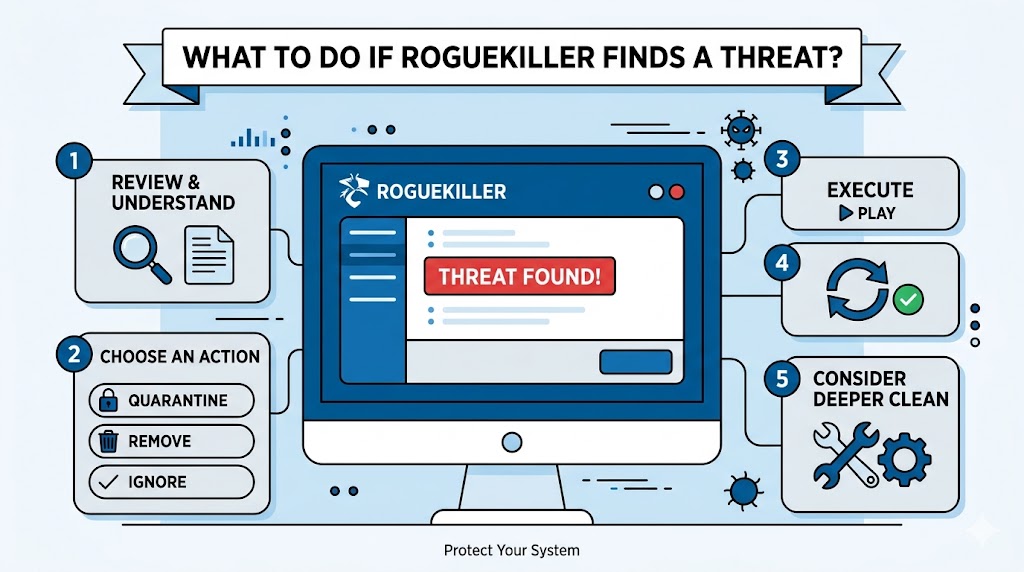
RogueKiller is a powerful malware detection and removal tool designed to identify suspicious programs, ransomware, rootkits, adware, and other security threats that may compromise a computer. Discovering a threat during a scan can be alarming, especially if you are unsure about the next steps. Understanding how to respond correctly helps protect your system, prevent data loss, and ensure that malicious files are removed safely without affecting legitimate programs.
Understand the Threat Detected by RogueKiller
When RogueKiller identifies a threat, the first step is to review the scan results carefully. Not every detection represents an active and dangerous infection. Some items may be potentially unwanted programs (PUPs), suspicious registry entries, or files that require further investigation.
Review the Detection Details
Examine the information provided by RogueKiller, including:
- Threat name
- File location
- Risk level
- Detection category
- Recommended action
Understanding these details helps determine the seriousness of the threat and whether immediate action is necessary.
Avoid Panic Deletion
Deleting files immediately without reviewing them can sometimes remove important system components or legitimate software. Always verify the threat before proceeding with removal.
Quarantine the Threat
Quarantining is one of the safest actions available when a threat is detected.
Why Quarantine Is Important
Quarantine isolates suspicious files from the operating system, preventing them from running or causing damage while allowing recovery if needed.
How RogueKiller Handles Quarantine
RogueKiller places detected threats in a secure location where they cannot execute. This gives users time to evaluate the detection before permanent removal.
Verify Quarantined Items
After quarantine, review the items to ensure no legitimate applications have been flagged incorrectly. False positives can occasionally occur with any security tool.
Run a Secondary Security Scan
A second opinion is valuable when dealing with malware infections.
Use Additional Security Tools
Run scans using reputable antivirus and anti-malware software. Multiple scans help confirm whether the detected threat is genuine and identify any additional malicious components.
Check for Hidden Malware
Some malware installs supporting files, scheduled tasks, browser extensions, or registry modifications. A secondary scan can uncover hidden elements that RogueKiller may not have fully addressed.
Compare Results
If multiple security tools detect the same threat, there is a higher likelihood that the threat is legitimate and requires removal.
Remove Confirmed Threats
Once a threat has been verified, proceed with removal.
Follow RogueKiller Recommendations
RogueKiller typically provides recommended actions for detected items. Following these recommendations helps eliminate threats efficiently.
Delete Malicious Files
Remove confirmed malware files from quarantine when you are certain they are harmful and unnecessary for system operations.
Restart the Computer
Many malware removals require a system restart to complete cleanup procedures and terminate lingering malicious processes.
Check System Performance After Removal
Monitoring your computer after malware removal is essential.
Observe System Behavior
Look for signs such as:
- Improved performance
- Reduced pop-up advertisements
- Faster startup times
- Stable browser functionality
These improvements often indicate successful threat removal.
Monitor Security Alerts
Continue watching for new security warnings or unusual system activity that could indicate a remaining infection.
Verify Network Activity
Unusual internet traffic may signal malware persistence. Monitoring network usage can help detect hidden threats.
Update Your Security Software
Outdated security software increases vulnerability to attacks.
Update RogueKiller
Install the latest RogueKiller updates to ensure access to current threat definitions and detection techniques.
Update Antivirus Protection
Maintain updated antivirus software to strengthen overall system security.
Enable Automatic Updates
Automatic updates help protect against newly discovered malware variants and evolving cyber threats.
Secure Important Accounts
Some malware attempts to steal login credentials and personal information.
Change Passwords
Update passwords for:
- Email accounts
- Banking services
- Social media platforms
- Business applications
Use strong and unique passwords for each account.
Enable Multi-Factor Authentication
Multi-factor authentication adds an extra layer of protection against unauthorized access.
Review Account Activity
Check account login histories and transaction records for suspicious activity following a malware detection.
Create a Backup of Clean Data
After cleaning the system, protect your information with reliable backups.
Back Up Essential Files
Store important documents, photos, and business data in secure backup locations.
Use Multiple Backup Methods
Combining cloud storage and external drives provides greater protection against future incidents.
Schedule Regular Backups
Automated backups reduce the risk of data loss and simplify recovery processes.
Strengthen Future Protection
Preventive measures help reduce the chances of future infections.
H3: Avoid Suspicious Downloads
Download software only from trusted and verified sources.
H3: Be Cautious with Email Attachments
Cybercriminals often distribute malware through phishing emails and malicious attachments.
Maintain Safe Browsing Habits
Avoid clicking unknown links, visiting suspicious websites, and installing unverified browser extensions.
When to Seek Professional Help
Some malware infections are highly sophisticated and difficult to remove completely.
Signs Professional Assistance Is Needed
Consider professional support if:
- Threats repeatedly return
- System crashes continue
- Sensitive data may have been exposed
- Security software cannot complete removal
Benefits of Expert Support
Cybersecurity professionals can perform advanced diagnostics, remove persistent malware, and strengthen overall system defenses.
Conclusion
If RogueKiller finds a threat, remain calm and follow a structured response process. Review detections, quarantine suspicious files, verify threats through additional scans, remove confirmed malware, update security tools, secure accounts, and strengthen preventive measures. Taking prompt and informed action helps maintain system security and minimizes the risk of future infections.